 Lyric Video Maker
Background
How to choose a background (stock or your own), set the aspect ratio, and enable effects: blur, movement, and word highlight.
What the Background tab does
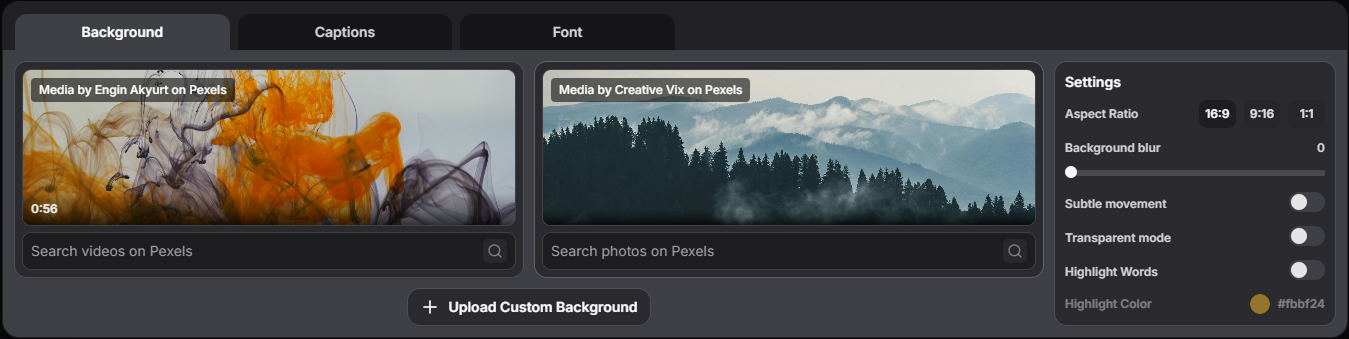
In the Background tab, you choose the video format, pick a background, and apply visual effects.
Background source
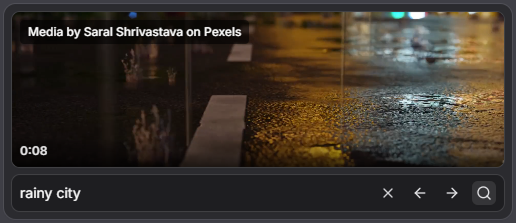
We use the Pexels stock library as a background source - it provides photos and videos free to use. You can search for backgrounds by keywords: enter a word or phrase in the search bar and click the search icon. Scroll through the results until you find a good option. To select a background, just click it.
The bottom-left corner of the video shows its duration. If the video is shorter than the audio, it will loop until the audio ends.
You can upload your own background. To do this, click Upload Custom Background. Keep in mind the file size limit (up to 500 MB).

Settings
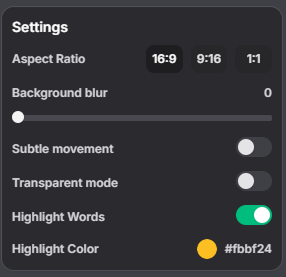
- Aspect ratio: 16:9 (1920x1080) for YouTube, 9:16 (1080x1920) for Instagram Reels / Instagram Stories / TikTok / YouTube Shorts, 1:1 (1080x1080) for Instagram Post
- Background blur: Adds a background blur effect
- Subtle movement: Adds subtle background movement. Useful for still images to make the video feel more dynamic
- Transparent mode: Hides the background layer (useful for compositing)
- Highlight Words: Turns on/off highlighting the current word during playback (like karaoke). If you import captions, they need word-level timings for highlighting to work
- Highlight Color: Sets the highlight color (active only when Highlight Words is enabled)