 Lyric Video Maker
Captions
Create captions with AI or import .srt/.vtt, then edit text and timings on the timeline.
How to add captions
After you upload your audio, you'll see 2 options: get captions automatically with our AI tool, or import your own captions (supported formats: .srt, .vtt). After you get captions, the editor will open where you can edit the text and timings.
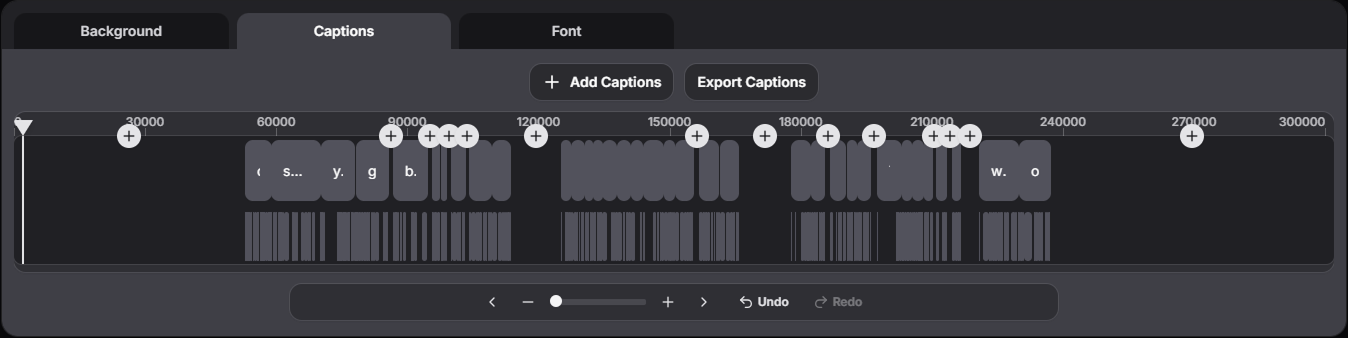
You can regenerate captions at any time. Click Add Captions and choose an option. You can also export segments as .srt and as plain text.
Editing on the timeline
The editor timeline has two main parts:

Segments (lines): each segment is a separate line with a start and end.
- Drag the whole segment, adjust timing by dragging the edges, double-click to edit the text.
- Split splits a line into two segments, Delete removes a segment.
- The + button in an empty gap adds a new segment.
Words (optional): when you generate captions with AI, words will be added automatically.
- For words, you can adjust timings by dragging the edges.
Segments are the source of truth. You can change text only in a segment. To add or remove a word, edit the segment. When you change segment timings, word timings will also change.
Navigation and history

- Zoom increases/decreases the timeline scale for precise editing.
- Previous / Next jumps to the previous/next segment.
- Undo / Redo cancels/restores the latest changes.