 Lyric Video Maker
How to Make a Lyric Video
Learn how to turn a song into a lyric video: upload audio, generate or import captions, sync the words, choose a background, and export MP4.
A lyric video puts the words of a song on screen in time with the vocals. This guide walks you through the process in Lyric Video Maker: from uploading the audio to checking the captions and preparing an MP4 export.
Creating and editing a project is free. The final MP4 export is a separate, one-time purchase. You can check the result in the preview before paying.
What you need before you start
- An audio file. MP3, WAV, M4A and FLAC are supported. Our example uses a FLAC recording.
- The original lyrics for checking. Use the artist's or songwriter's own text where available. For this example, the lyrics are in the description of the artist's official video.
- Permission to use the materials. Check the music, lyrics and background separately. See the sources and credits for this example.
A ready-made subtitle file is optional. If you already have timed lyrics in SRT or VTT format, you can import them instead of running AI transcription.
1. Upload your song
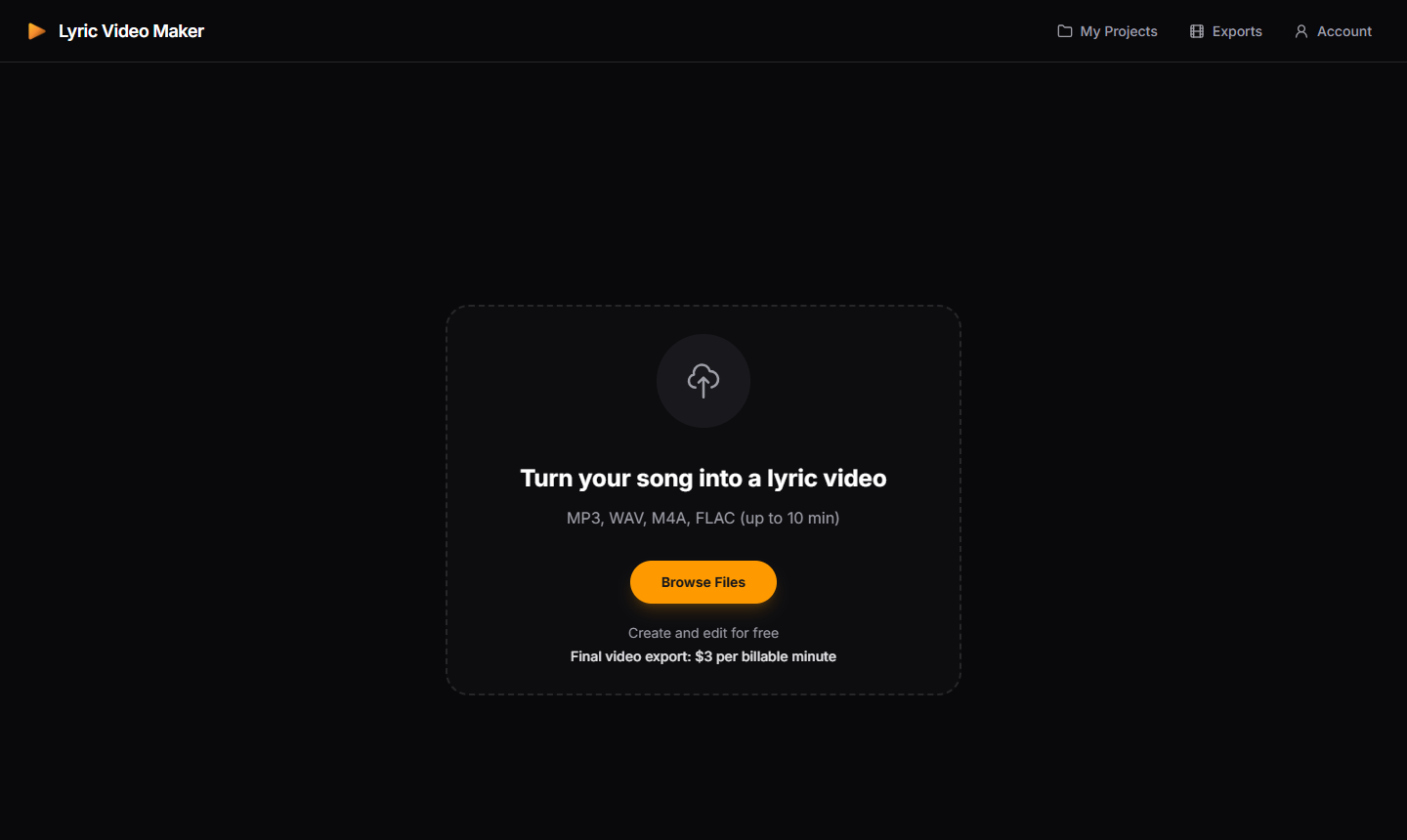
Open the lyric video editor, click Browse Files and choose your audio file. On a computer, you can also drag the file into the upload area. Wait for the upload to finish.
Use a clear recording of the version you want to publish: a live performance and a studio recording may have different words or timing.
2. Generate or import captions
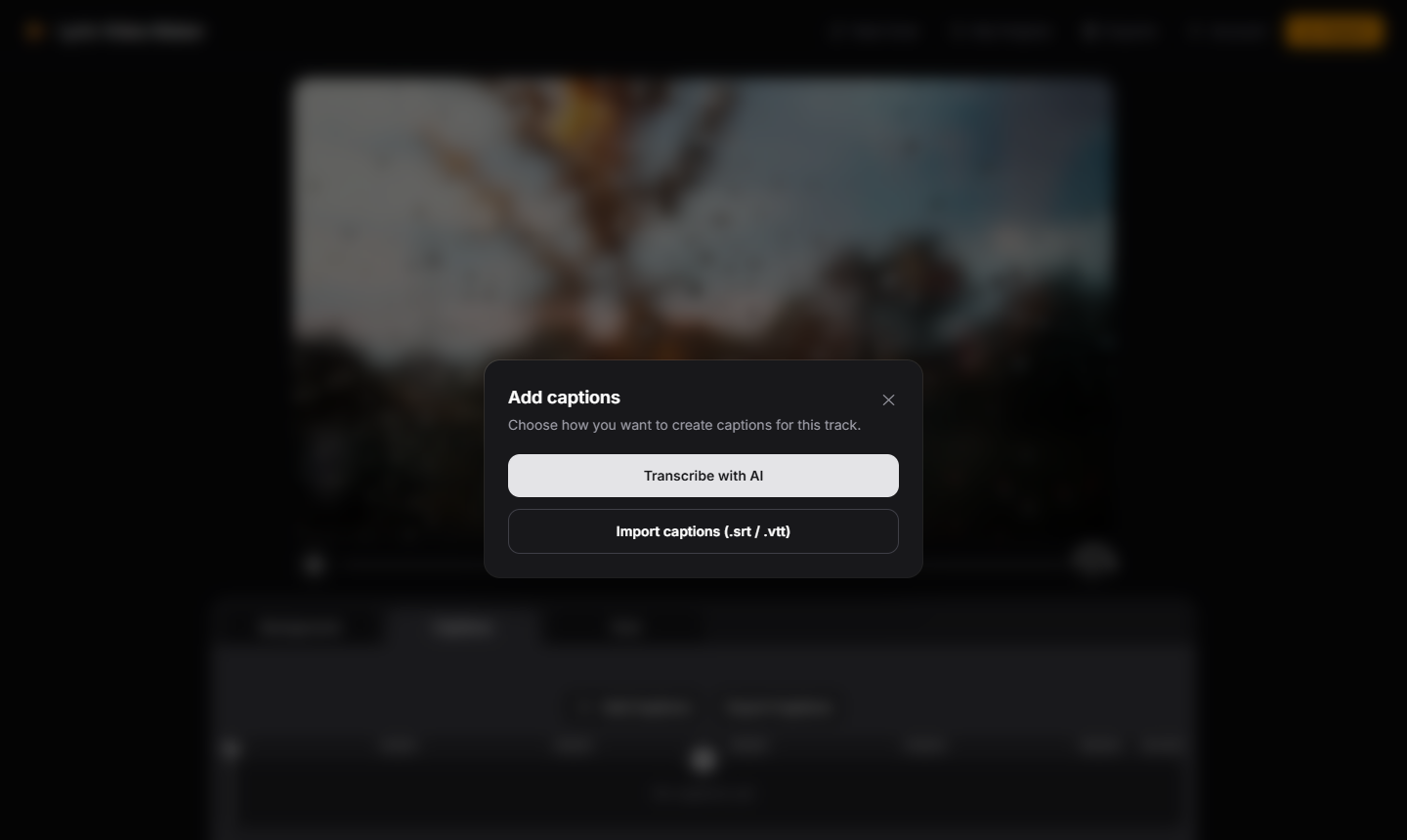
After uploading, the Add captions dialog offers two paths:
- Transcribe with AI creates text and timings from the recording. This is the path used for our example.
- Import captions (.srt / .vtt) loads an existing subtitle file. A plain lyrics text file does not contain the timings needed for this import.
Wait for transcription to complete, then open Captions. AI-generated lyrics are a starting point: instruments, backing vocals and unusual pronunciation can affect the result.
3. Check the lyrics against the original
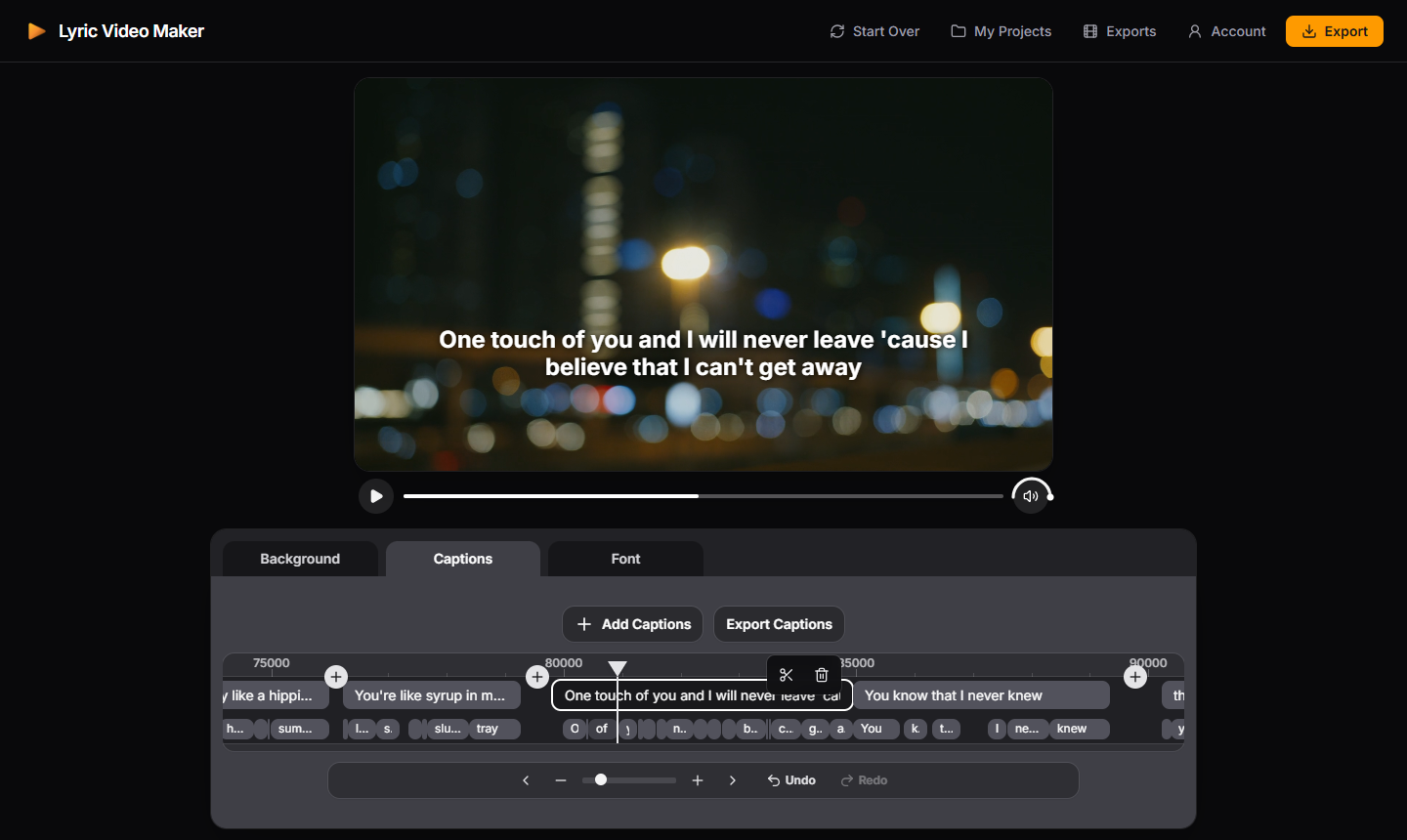
Play the song and compare each line with the author's lyrics. Double-click a caption segment on the timeline to edit its text. Check contractions, repeated choruses and short words between phrases, as well as obvious spelling mistakes.
Keep the captions in the language of the recording. In this example, the words stay in English in both versions of this guide.
In our transcription, one phrase came back as “And while I'm touching you”. The author's lyrics say “One touch of you”. We corrected the segment text, then separated the two phrases into shorter captions.
When a published lyrics sheet and the recording differ, listen to the passage again before changing it. The text on screen should follow the version being sung.
You can save a separate copy through Export Captions: choose SRT for timed lines or plain text for proofreading. See the detailed guide to adding and editing captions.
4. Sync the lines and individual words
In Captions, play a short passage and check when its line appears and disappears. Drag a segment to move it, or drag its edges to adjust the start and end. Increase the timeline zoom for finer adjustments.
Use Split when a line is too long, and remove captions that fall in an instrumental gap. Keep a line on screen long enough to read, without leaving it over the next sung phrase.
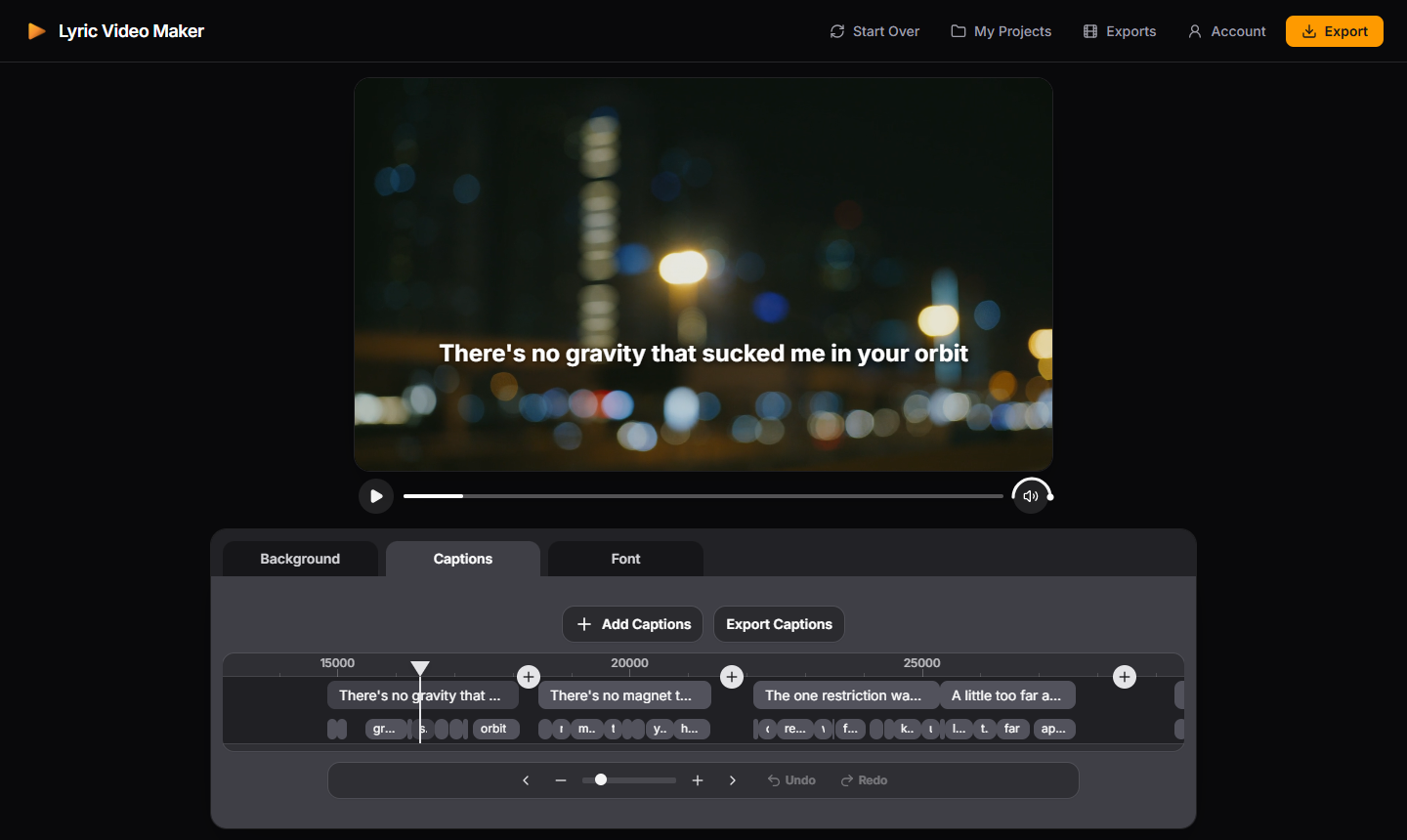
AI transcription also provides word timings. You can adjust word boundaries on the timeline. Standard SRT and VTT files usually describe whole lines, so importing one does not guarantee word-level timing.
5. Choose a video background and aspect ratio
Open Background. You can choose a stock video or photo, or upload your own file. For this example, we use a horizontal night scene with out-of-focus lights.
Enter blurred city lights in Search videos on Pexels and run the search. Browse the results with the arrows, then click the video preview to apply it as your background.
Choose 16:9 for a horizontal video. The other available formats are 9:16 for vertical video and 1:1 for a square. Set the format before finalising text size and placement.
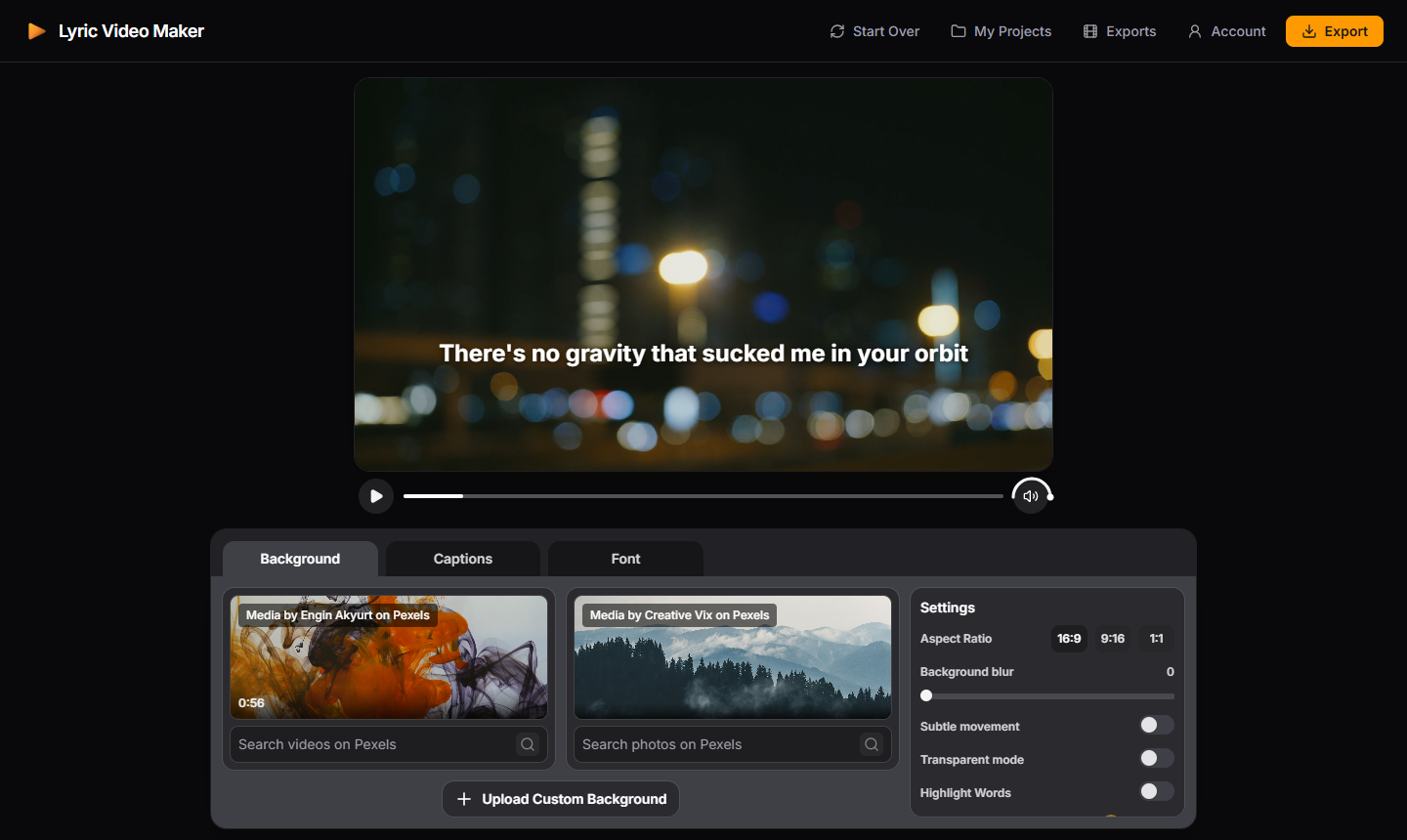
Watch the background across several phrases. Bright lights moving behind the text may make some words harder to read. Adjust blur or choose a quieter scene if necessary. More options are covered in the video background guide.
6. Choose a font and text animation
Open Font and set the font, size, colour, alignment and shadow. Our example uses white, centred text with a dark shadow and a Fade animation.
Keep enough space around the text. Check the longest line as well as the shortest one: a size that fits a few words may wrap a longer phrase awkwardly.
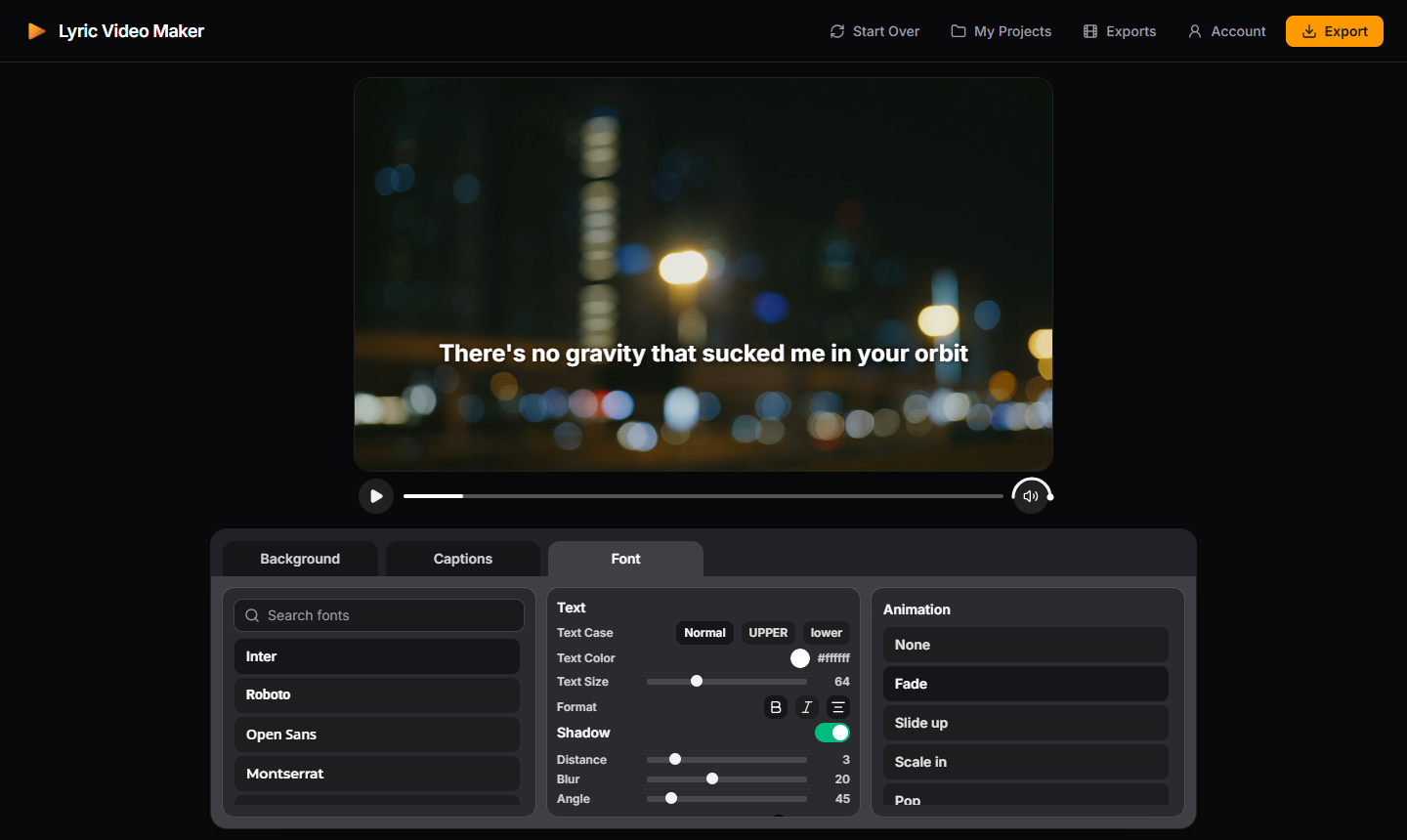
For karaoke-style text, enable Highlight words in Background and check the word timings. Highlighting is optional. See the font and animation guide for the individual controls.
7. Watch the preview before exporting
Play the song from beginning to end. Check these points before preparing the final export:
- The lyrics match the recording, including repeated sections.
- Each line starts with the vocals and ends at a natural point.
- Long lines fit the frame and remain readable against the moving background.
- Instrumental passages do not contain stray captions.
- The selected aspect ratio matches where you plan to publish.
Also check the preview at a smaller size. A lyric video that looks clear on a large monitor still needs to be readable on a phone.
8. Export your lyric video as MP4
Click Export. Review the confirmation and choose Prepare export. Sign in if prompted. The service prepares the export and shows the final price before payment.

Exports cost $3 per billable minute, rounded to the nearest whole minute with a one-minute minimum. At 2:44, the full song in our example rounds to three billable minutes: $9. See pricing and rounding examples; the checkout shows the final amount for your export.
After payment, wait for rendering to finish, then use Download to open the result and download your MP4. Horizontal output is 1920 × 1080; vertical and square formats use their corresponding Full HD dimensions.
Common problems
The AI got a word wrong
Double-click the segment and correct its text using the original lyrics and recording. You do not need to regenerate the whole song for a single correction.
A line appears too early or too late
Zoom in on the timeline, move the segment or its edges, and replay that passage. Check individual word boundaries if highlighting is enabled.
The lyrics blend into the background
Try a stronger shadow, a different text colour or a calmer background. Check moving footage at several points, not just on a paused frame.
A line does not fit on screen
Split it at a natural phrase break, reduce the font size or adjust the text frame. Review it again in the chosen aspect ratio.
Frequently asked questions
Can I make a lyric video without installing software?
Yes. Upload audio, edit captions and style the video in the browser.
Do I need an SRT file?
No. You can generate captions with AI. SRT or VTT import is an alternative when you already have timed lyrics.
Can I use my own background video?
Yes. Open Background and upload a video or image that you have permission to use.
Is creating the video free?
Creating, editing and previewing are free. Downloading the final rendered MP4 requires a paid export; there is no subscription.
Example sources and credits
Music and lyrics: Crazy Glue — Josh Woodward, licensed under CC BY 4.0. Lyrics reference: the artist's official video description. The demonstration uses an edited excerpt with synchronised captions and added visuals.
Background: Blurred City Lights — Tima Miroshnichenko / Pexels, used under the Pexels License.